
General
1. What is Commercial IQ?
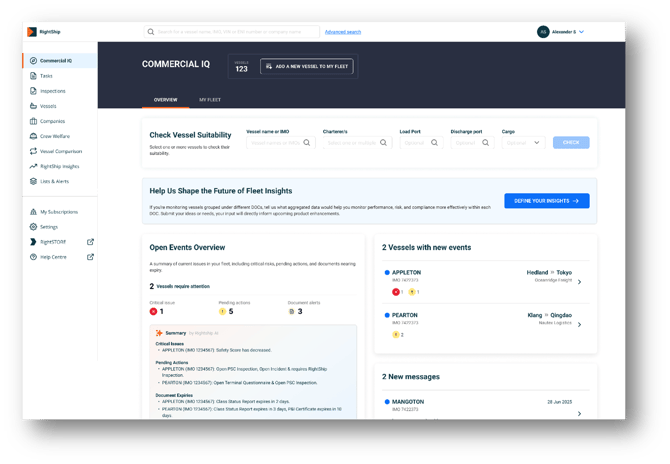
Commercial IQ is a new product that helps commercial teams (charterers, operators, brokers) make faster and better-informed vessel selection and chartering decisions using RightShip’s vessel specific data.
2. Who is Commercial IQ for?
It’s designed primarily for anyone involved in evaluating, nominating, or positioning vessels in commercial transactions, helping them make faster, data-backed decisions.
- Commercial Managers – to shortlist and nominate vessels quickly and confidently, balancing safety, efficiency, and compliance.
- Operators – to evaluate vessels for their own operations, to benchmark how their fleet compares in the market, and to assess vessels on behalf of potential customers.
- Vessel Owners acting in an operator capacity – to assess and monitor their own vessels before presenting them for nomination or charter.
- Charterers acting in an operator capacity – in cases where they are responsible for nominating vessels to others, Commercial IQ provides the insights needed to support well-informed recommendations.
3. How is Commercial IQ different from other RightShip products, specifically the Vet, Screen or Due Diligence?
Commercial IQ is designed specifically to support commercial decision-making, rather than technical vetting or due diligence. It offers two core features:
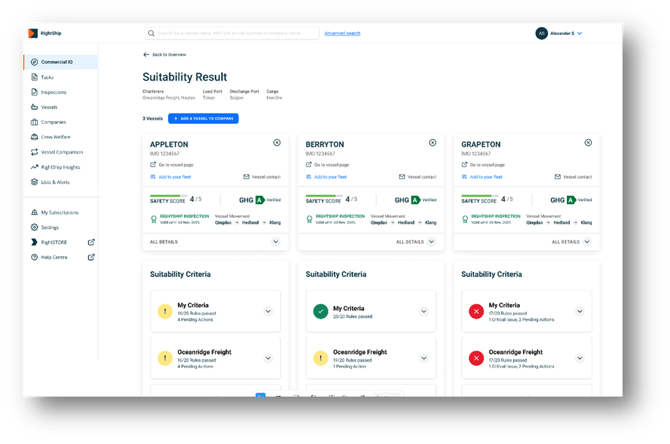
- Vessel Suitability Check – Provides a point-in-time assessment of how “charter-ready” a vessel is. This combines multiple criteria checks, in addition to vessels insights from the past 12 months to give users the context they need to make well-informed choices. It also allows for side-by-side vessel comparisons to support transparent decision-making.
- Vessel Ongoing Monitoring – Once a vessel has been added to your fleet, Commercial IQ automatically tracks it against your chosen criteria. This ensures you receive continuous visibility of emerging issues, helping you stay ahead of risks without having to manually re-check each vessel.
Unlike RightShip’s Vetting, Screening or Due Diligence, Commercial IQ does not provide a streamlined approval/rejection workflow. Instead, its purpose is to deliver timely insights into vessel suitability and maintain an ongoing view of fleet health, tailored for commercial use.
Product Specifics
4. How can I access Commercial IQ?
Access to Commercial IQ is controlled by user permissions. To enable it, the permission “Can Access Commercial IQ” must be activated for your account. Once enabled, the product will appear in your platform view.
5. How does the vessel suitability check work?
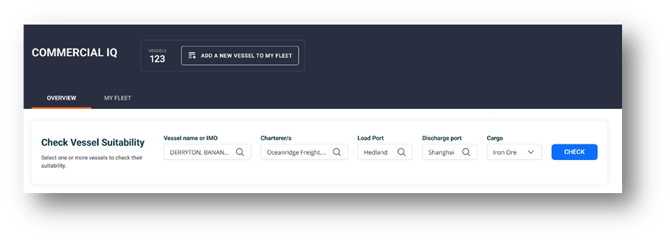
You can request one or more Vessel Suitability Checks directly from the Commercial IQ Overview tab or from the My Fleet tab via the New Suitability Check button. Each check provides a point-in-time assessment of a vessel’s charter readiness. The results are displayed in a new screen for review but are not stored, meaning each check represents a fresh evaluation at the moment it is run.
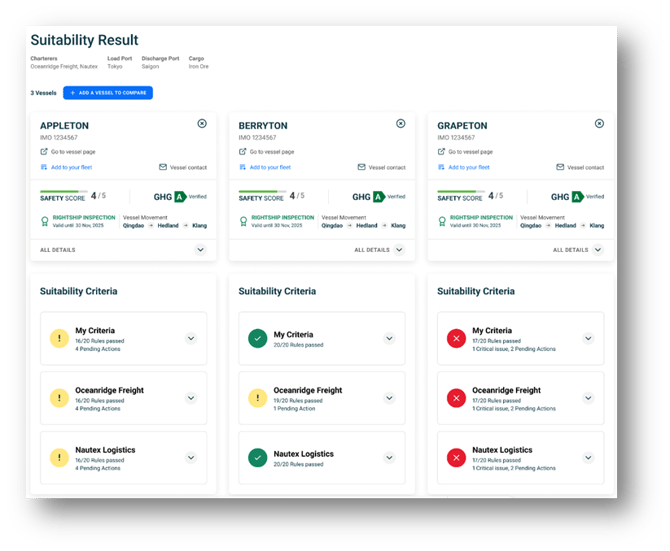
When you trigger a Vessel Suitability Check from the Commercial IQ Overview tab, the vessel is evaluated against a predefined set of criteria configured during your onboarding. The check highlights whether:
- There are any critical rules
- There are pending tasks requiring attention
- Or the vessel meets all requirements
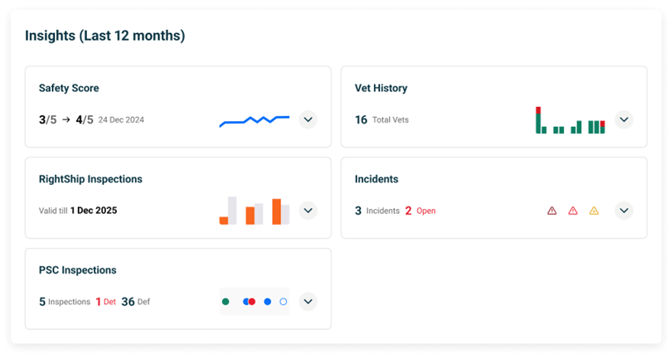
In addition, each check generates 12-month historical insights for the vessel, covering:
- Safety Score trajectory
- Port State Control (PSC) inspections
- Incidents
- Vetting outcomes
- RightShip Inspections (where applicable) [post MVP]
These insights provide additional context into the vessel’s recent performance and reliability. While past performance is not a guarantee of future outcomes, this view helps identify trends and offers predictive signals to support better vessel selection.
6. How does Vessel Ongoing Monitoring work?
After running a Vessel Suitability Check—or at any time while using Commercial IQ—you can choose to add a vessel to My Fleet. My Fleet includes all vessels added by users across your company. Once a vessel is added, Ongoing Monitoring is automatically enabled.
For every vessel in My Fleet, Commercial IQ will:
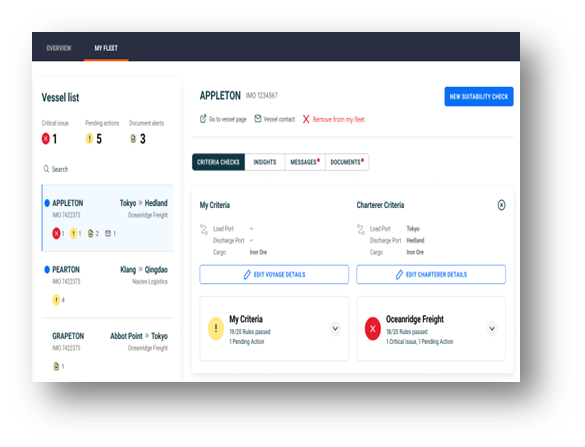
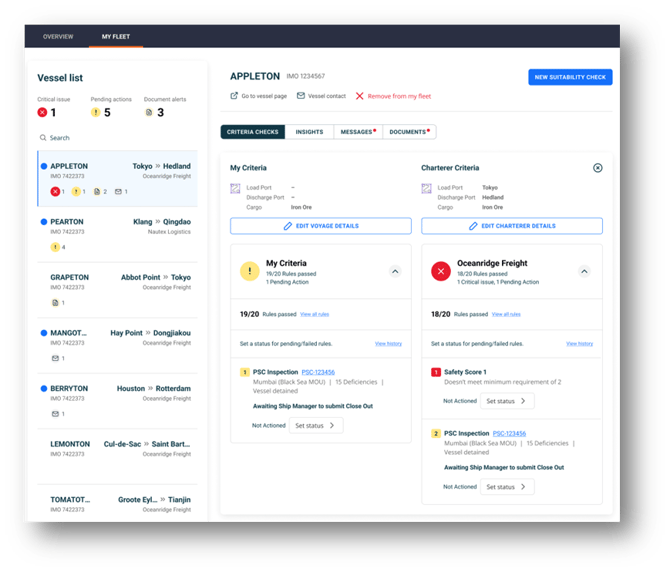
- Continuously check it against the agreed set of criteria agreed on during onboarding which can be viewed via the Criteria Checks Tab.
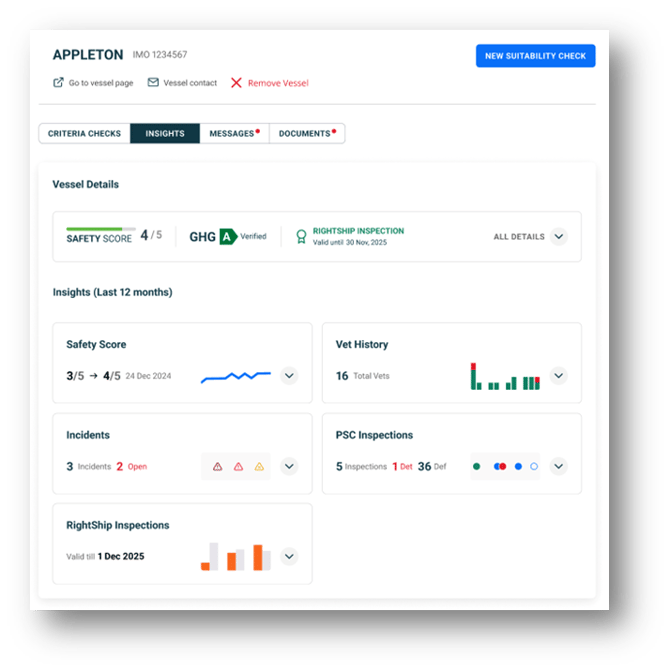
- Provide dynamic 12-month insights on Safety Score, PSC inspections, incidents, vetting, and RightShip Inspections (where applicable [post MVP]) via the Insights Tab.
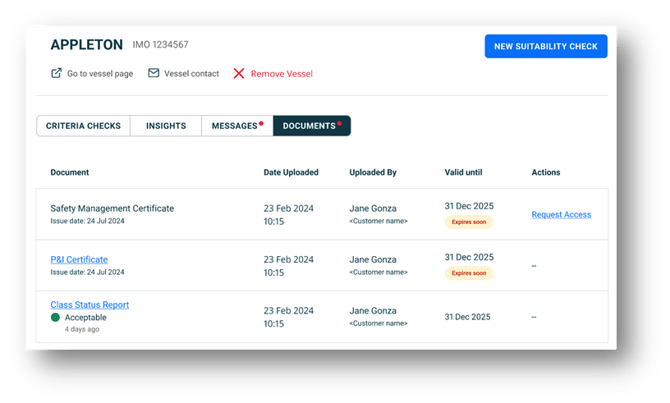
- Offer quick access to the Document Management Centre for vessel-related documents via the Documents tab.
- Provide direct entry to the Message Centre for any communications linked to that vessel via the Message Centre tab. [post MVP]
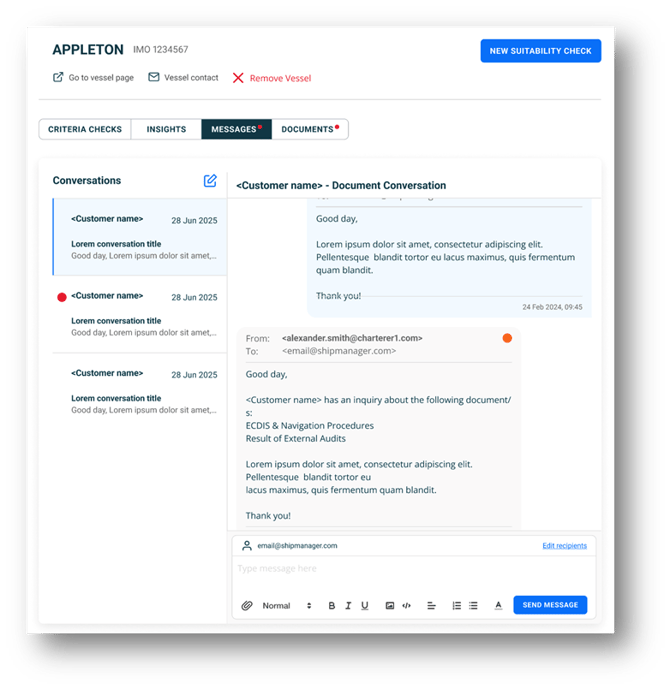
This ensures you always have an up-to-date, centralised view of your fleet’s commercial readiness and any emerging risks.
7. How to add a vessel in My Fleet?
You can add vessels to My Fleet in Commercial IQ through several supported entry points. Once added, the vessel appears in the My Fleet tab.
Ways to Add a Vessel
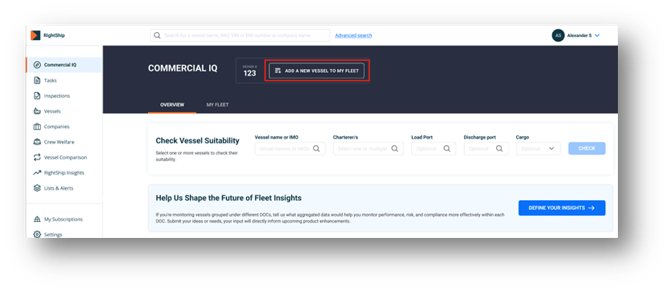
a. Commercial IQ Banner CTA
-
- Click “Add a new vessel to My Fleet” in the Commercial IQ banner.
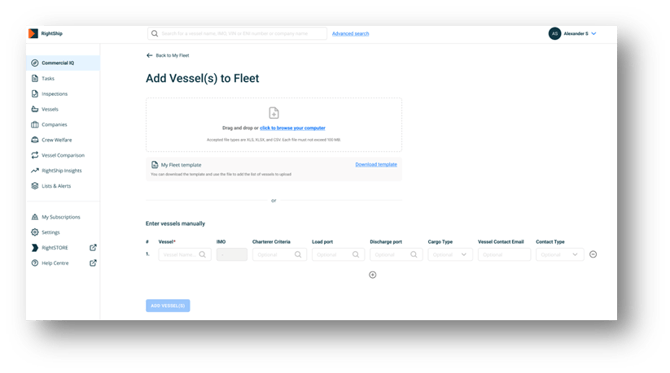
- You will be brought to a page where you can:
- Search and add vessels manually (with required metadata).
- Bulk upload vessels using an Excel template.
- Download the template directly from the panel
- Upload the filled Excel to automatically parse and populate vessel data.
 b. Vessel Suitability Check Result CTA
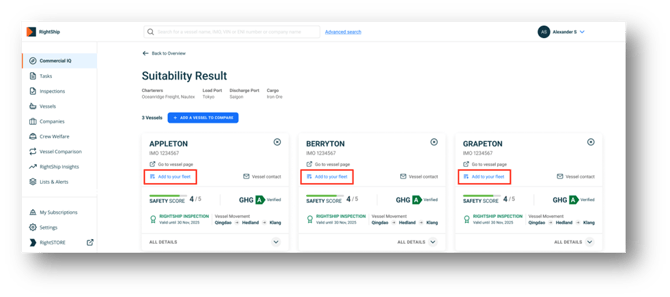
- From the Suitability Check Result Page, click “Add to My Fleet” in the vessel widget.
 8. What are Charterer’s Criteria?
Some charterers choose to share their vessel selection criteria, and when this is
the case, those criteria can be made visible in Commercial IQ. This is only possible when:
- The charterer has given their consent, and
- The correct configuration has been set up by RightShip for you as a Commercial IQ user to make use of
The specific criteria you see will depend on what the charterer has agreed to share and the configuration in place.
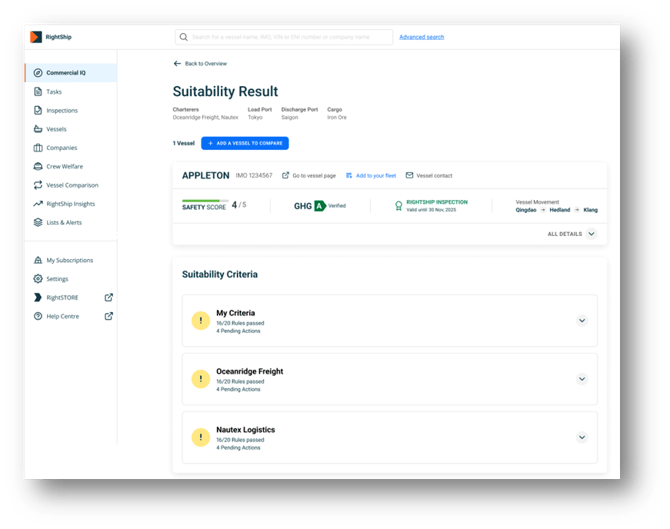
- During a Vessel Suitability Check: You can assess a vessel against one or more charterer criteria in addition to your own. Your own criteria will always run by default, ensuring you have a baseline assessment.
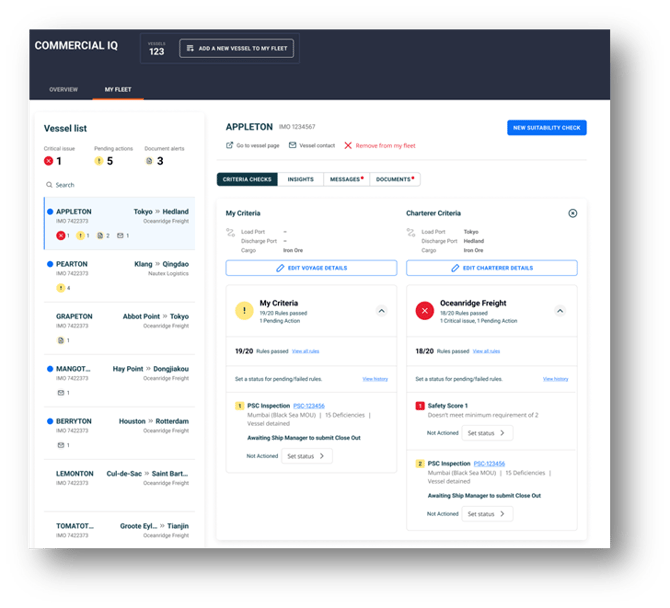
- In My Fleet (ongoing monitoring): Only one set of charterer criteria can be applied at a time, in addition to your own criteria. This reflects the real-world use case: once a vessel has been provisioned to a specific charterer, it should only be monitored against that charterer’s requirements for the duration of the contract
Note: The shared Charterer’s Criteria may not be an exact match of the charterer’s full internal requirements. Instead, they reflect only the elements the charterer has chosen to expose through Commercial IQ.
9. What is the Vessel Contact feature and how does it work? [post MVP]
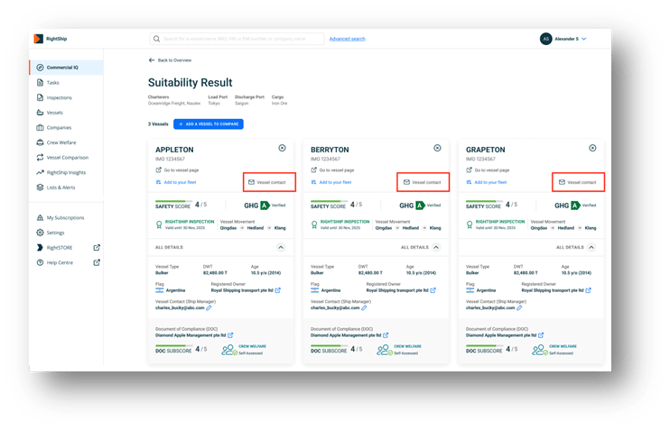
The Vessel Contact feature in Commercial IQ allows you to add and manage vessel contact details, and then use those details to initiate direct communication with vessels via the platform. It is available in both the Vessel Suitability Check interface and at the My Fleet
a. Adding Vessel Contact Information
You can configure a dedicated vessel contact email — this can be any email address of the person you are liaising with for that vessel.
For security reasons, only company-specific domains are supported. Personal emails (e.g., Gmail, Yahoo) are not allowed.
When saving a vessel contact, you must:
- Provide a valid email address (validated format).
- Select a Contact Type (e.g., Broker, Operator, Ship Manager, Ship Owner, Other).
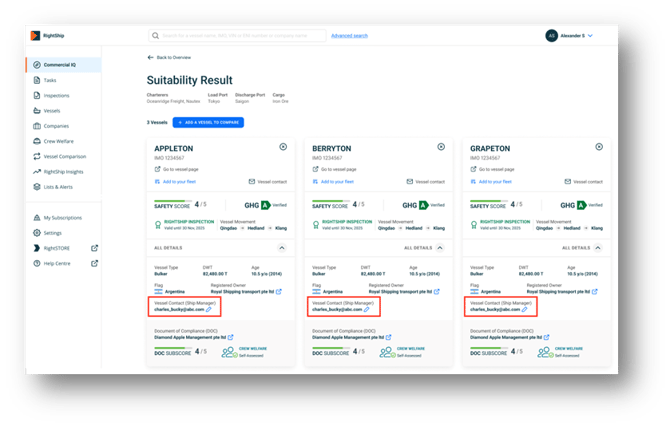
Once added, the contact information is displayed with the vessel and can be updated if needed. This will be visible to anyone within your company.
b. Contacting Vessels via Message Centre [post MVP]
- With a vessel contact configured, you can trigger communication directly from:
- The Vessel Suitability Check
- The My Fleet tab
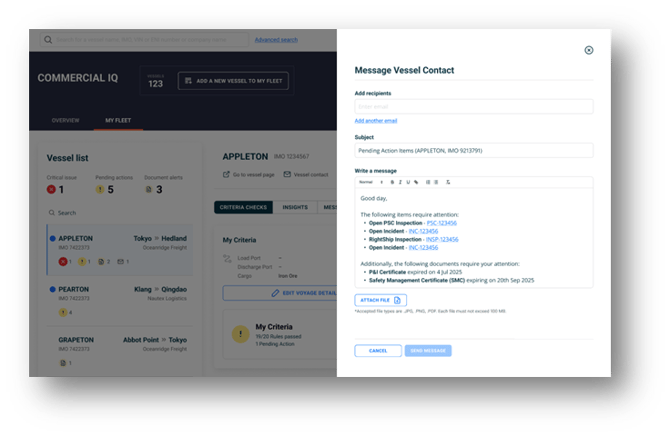
- Messages are sent through RightShip’s Message Centre, and the pre-configured contact email is automatically used (saving you from re-entering it every time).
- Messages content is auto generated (with ability to edit/delete) and include:
- Pending action items triggered on the vessel based on the criteria set
- Missing or expiring documents (based on DMC configuration)
c. Replies and Ongoing Tracking [post MVP]
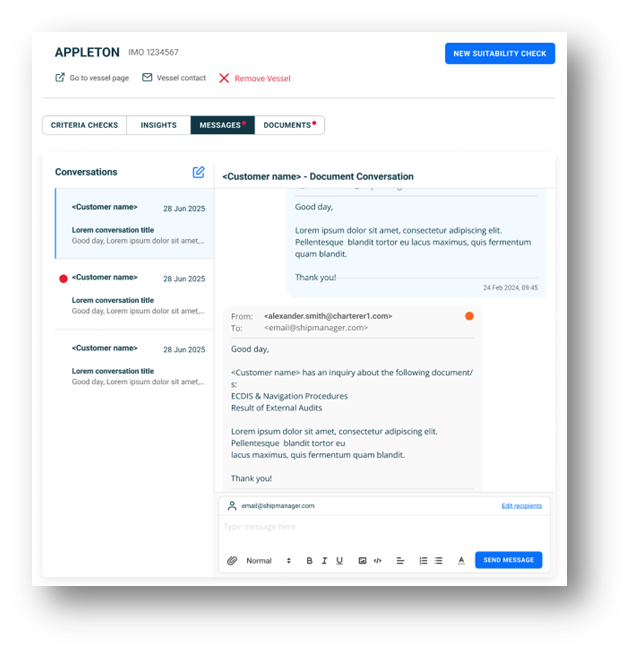
- Messages are sent via RightShip’s Message Centre, with no authentication required for the vessel to open or reply.
- Replies from the vessel are routed back into the Message Centre in the vessel-specific thread.
- Only users from the same company/ies domain within the thread can see the conversation.
10. How can I exclude a Failed or Pending rule that has already been Actioned or Mitigated? [post MVP]
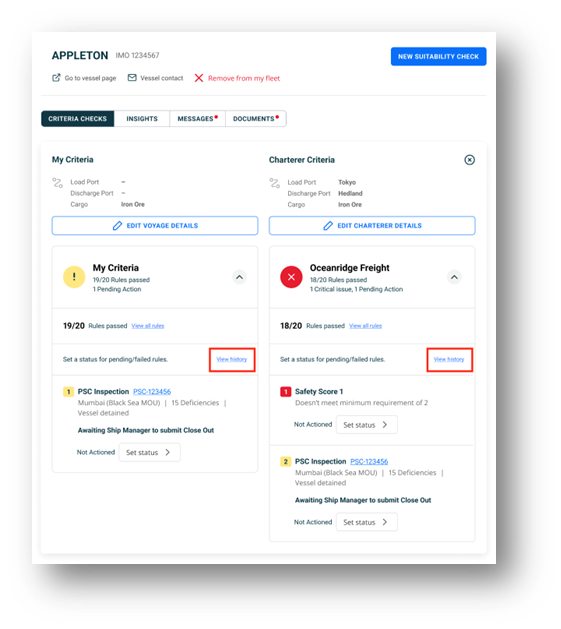
In My Fleet, any rule that is triggered and does not equal “Pass” is automatically assigned the default status “Not Actioned.”
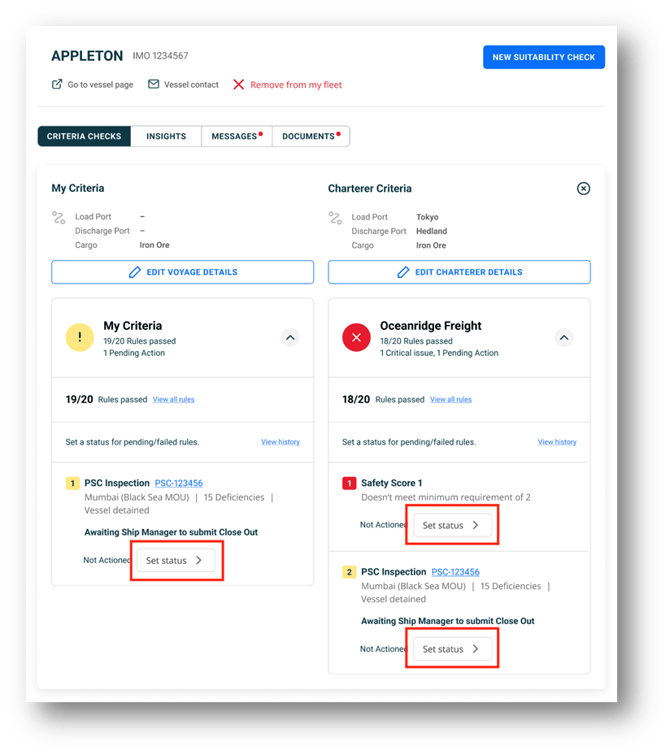
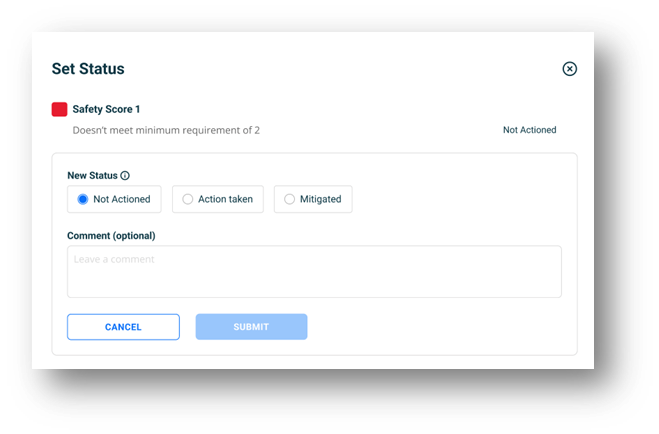
- Updating the status: You can update this by clicking the “Set Status” A slide-in panel will open, allowing you to choose a new status:
-
- Action Taken – Indicates that a response or corrective action has been carried out. The rule remains visible to ensure full transparency of all triggered rules.
- Mitigated – Indicates that the rule has been addressed and mitigated through a specific action. Once marked as mitigated, the rule is grayed out to prevent unnecessary alerts for issues that have already been resolved.
Additionally, you can also add an optional comment for context.
- Confirmation: Once saved, a toast notification confirms that your entry was successful.
- Visibility at rule level:
- The new status replaces the default “Not Actioned.”
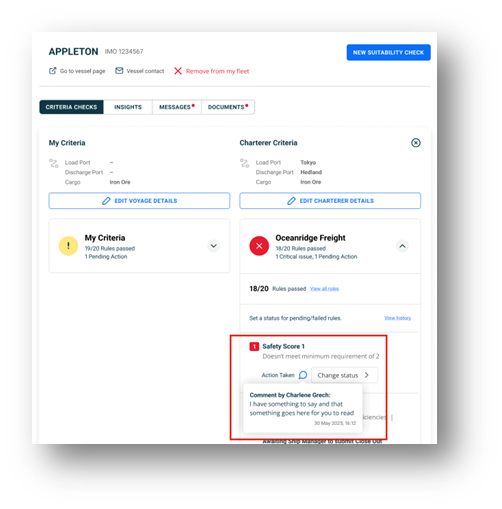
- If a comment is added, a comment icon will appear. Hovering over it displays the full comment, the user who added it, and the date/time.
-
- The action button updates to “Change Status,” which allows you to reopen the panel and modify the status or comment at any time.
-
- Each Status Change is recorded in the History Trail – audited by user, date and time. All changes are reflected at the customer level, so the updated status and comments are visible beyond just the user who set them.
11. History Trail
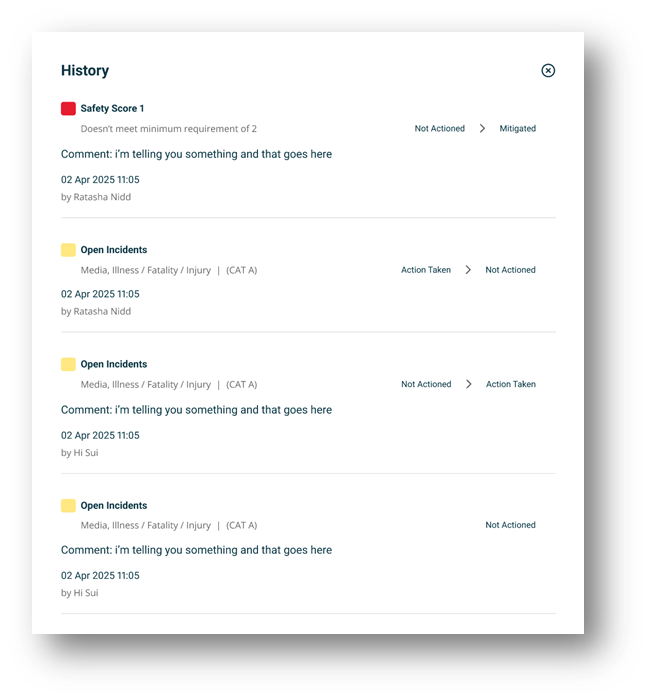
Any Actions taken by any user within your same company, on any rule are saved in the History Trail of each vessel Criteria Check. Here you can track down the user, date, time the action taken and any supporting comments.
12. How can I get an overview of all open events on My Fleet?
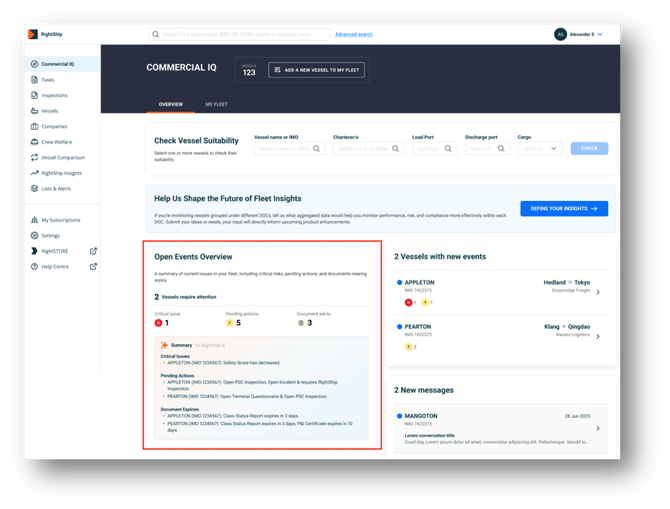
In Commercial IQ Overview page, you can immediately get a view of all open events on all vessels within your Fleet. These open events represent any failed rules, including critical and or pending actions in addition to any expiring or expired documents.
[Coming Soon Feature] Additionally, as part of Commercial IQ, an AI-powered Summary will highlight all open events across vessels in your My Fleet. Since these vessels are under ongoing monitoring, any event or rule fail will be captured.
Email updates: You can also receive the same AI summary by email. To enable this, RightShip will configure the email notification settings for your account.
This feature ensures you can easily stay on top of all fleet changes without having to manually review each vessel.
13. How can I see what has changed since my last access?
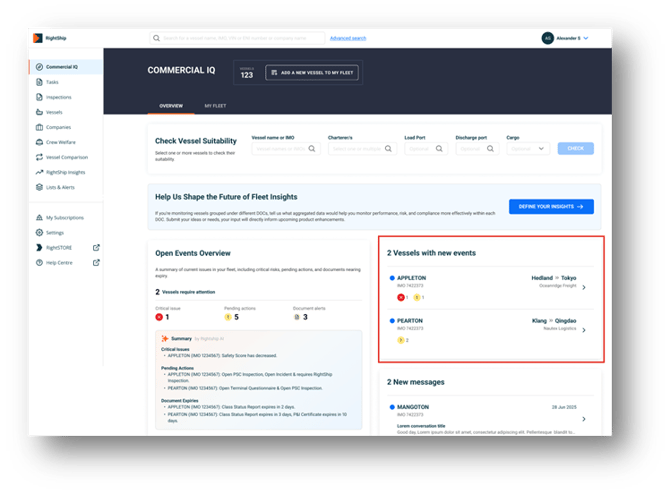
On the Commercial IQ Overview page, you can quickly view all new events across the vessels in your Fleet. Any vessel with a new event will appear in the New Events widget, highlighting whether the event is a failed rule or a pending action.
- An event will remain marked as “new” until you navigate to the vessel and review it.
- The “new” status is user-specific, meaning it only applies to your view and resets once you have acknowledged the event.
This makes it easy to immediately identify what requires your attention since your last login.