
When NorthStandard requests access to your RightShip inspection report, you will receive an email asking you to approve or reject the request. By approving the request, you enable NorthStandard to securely use an existing RightShip inspection report as part of its loss prevention activities, helping reduce unnecessary duplicate inspections, minimise disruption to your vessel and crew, and support a more efficient approach to vessel assurance.
Step 1: Open the email from RightShip
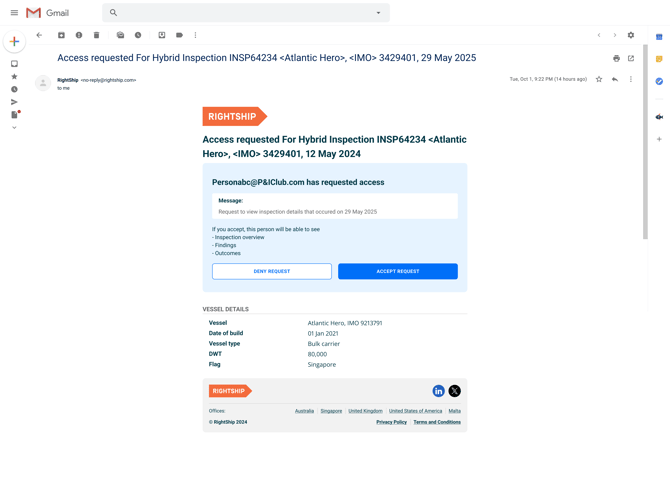
You will receive an email notification from RightShip informing you that NorthStandard has requested access to one of your inspection reports.
Step 2: Choose how to respond
Option A: Approve the request
- Click Approve in the email.
- You will be redirected to the RightShip platform.
- Review and accept the Terms & Conditions.
- Click Proceed.
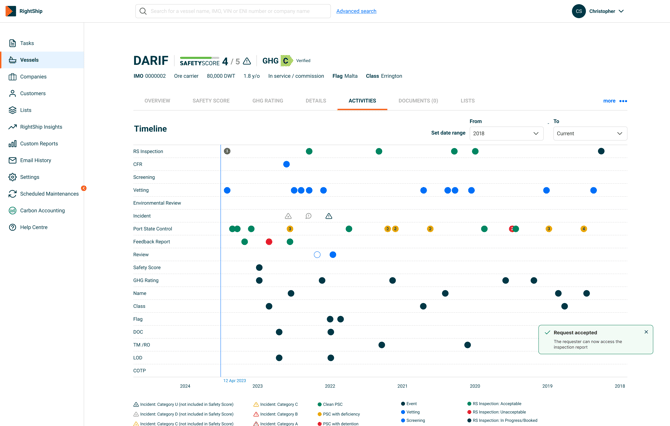
- A confirmation message will appear indicating that access has been granted. You may also view the accepted request within the RightShip Platform.
Option B: Reject the request
- Click Reject in the email.
- You will be redirected to the RightShip platform.
- Confirm that you wish to reject the request.
Note: You will not be asked to accept the Terms & Conditions when rejecting the request.